BidRidge › Designers › Guide › Chapter 1

Chapter 1 · Deck & Fence Designer

Lakeview deck

A deck job starts in BidRidge with a rough size from the walk-through. We open the Deck & Fence Designer from that job, send the design back as an update, review what changes, and when a sold job changes, BidRidge writes the change order.

In the designer, tap Open project and pick the sample file. It opens exactly as in the video.

Narrated walkthrough, 1:55. Captions on.

The sample in numbers

  • Typed at the walk-through
    Better $23,200
  • With the design
    Better $63,250
  • Change order #1
    $1,450 (stair 4′ to 5′)
  • Files in the Job Pack
    6

Step by step

Step 1: Start the job in BidRidge in the Deck & Fence Designer
  1. The deck typed at the walk-through
  2. Design it

Step 1: Start the job in BidRidge

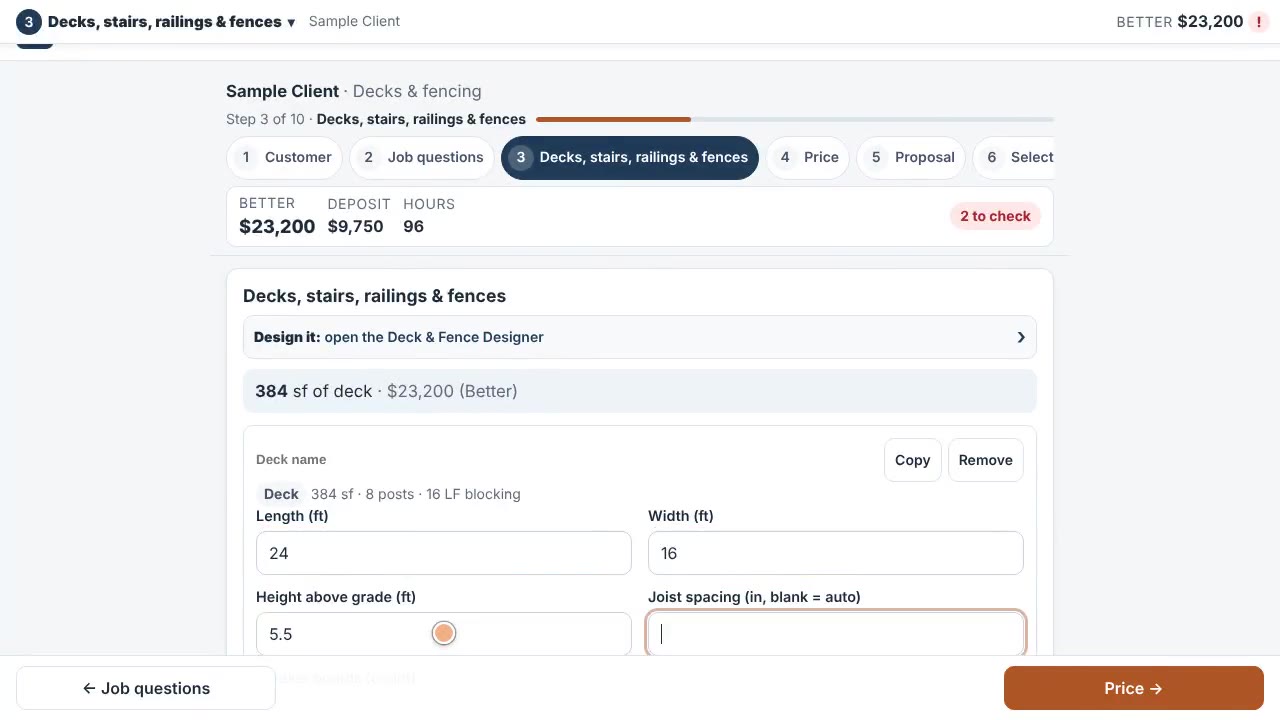
Make a Decks estimate, add the customer, and type the deck as you measured it at the walk-through: 24 by 16 feet, 5½ feet high. That's enough for a first price.

Field tip: The typed rooms stay until the design replaces them, so you can price a ballpark on the spot.
Step 2: Design it in the Deck & Fence Designer
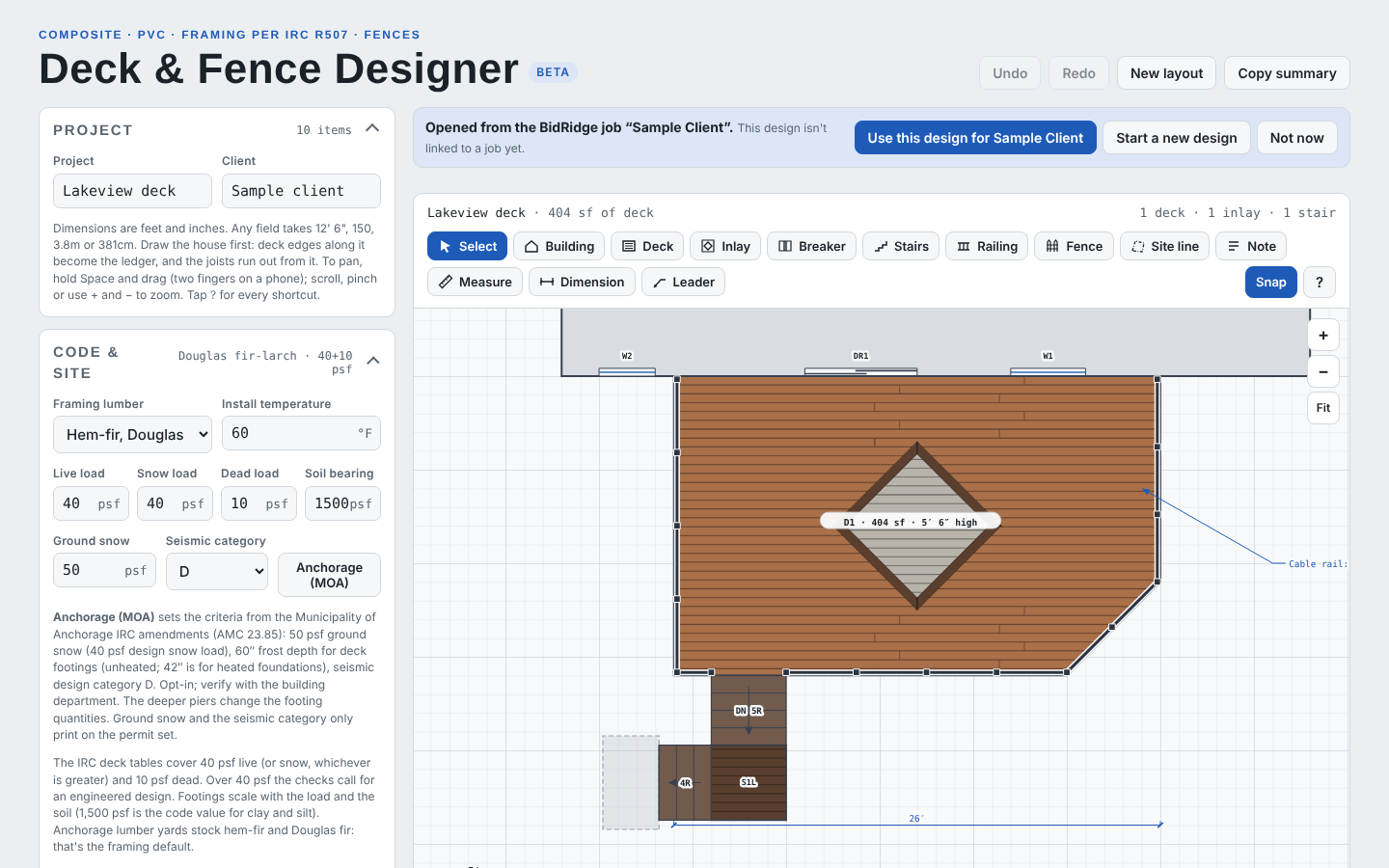
  1. Opened from the BidRidge job
  2. Linked to the job

Step 2: Design it

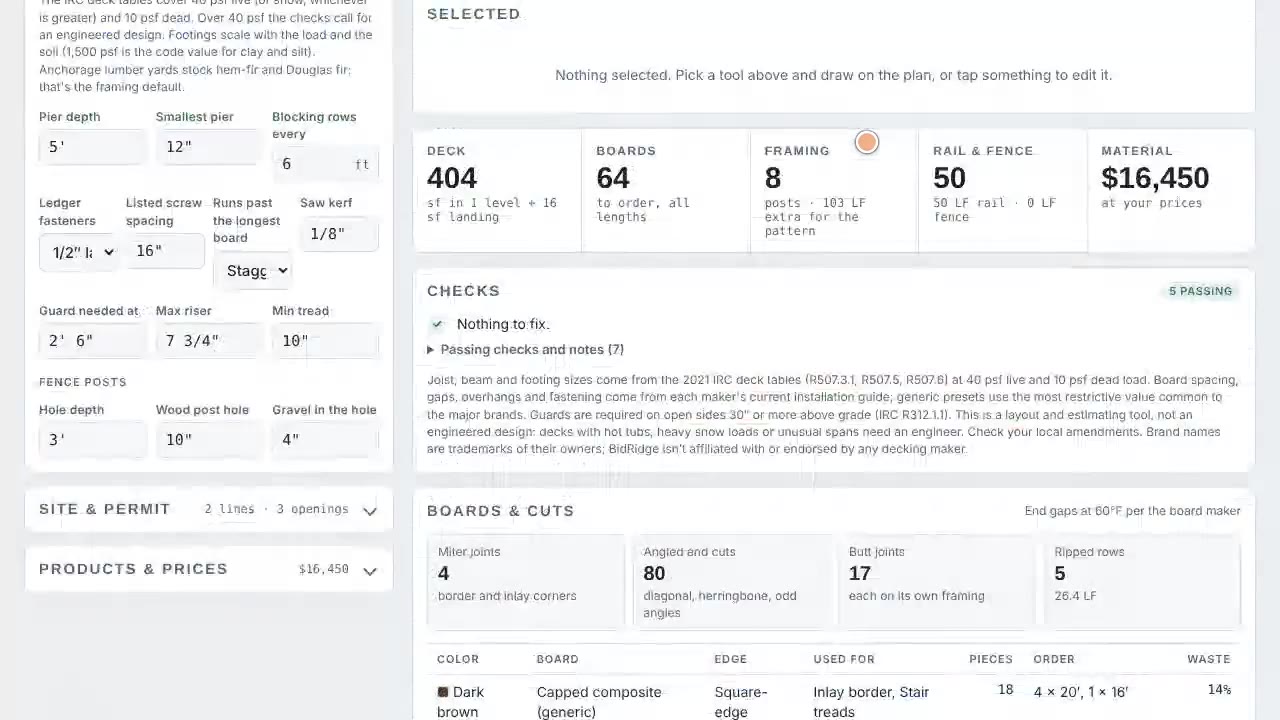
Tap Design it under the step's heading. The Deck & Fence Designer opens signed in, and it knows which job it came from. If a design is already open, the bar at the top asks which one to use for this job.

Field tip: Start a new design or Not now leave the open design alone. Nothing is linked until you choose.

Step 3: Change the design and send it as an update in the Deck & Fence Designer
  1. Picture-frame border
  2. Send as: Update
  3. Update the job in BidRidge

Step 3: Change the design and send it as an update

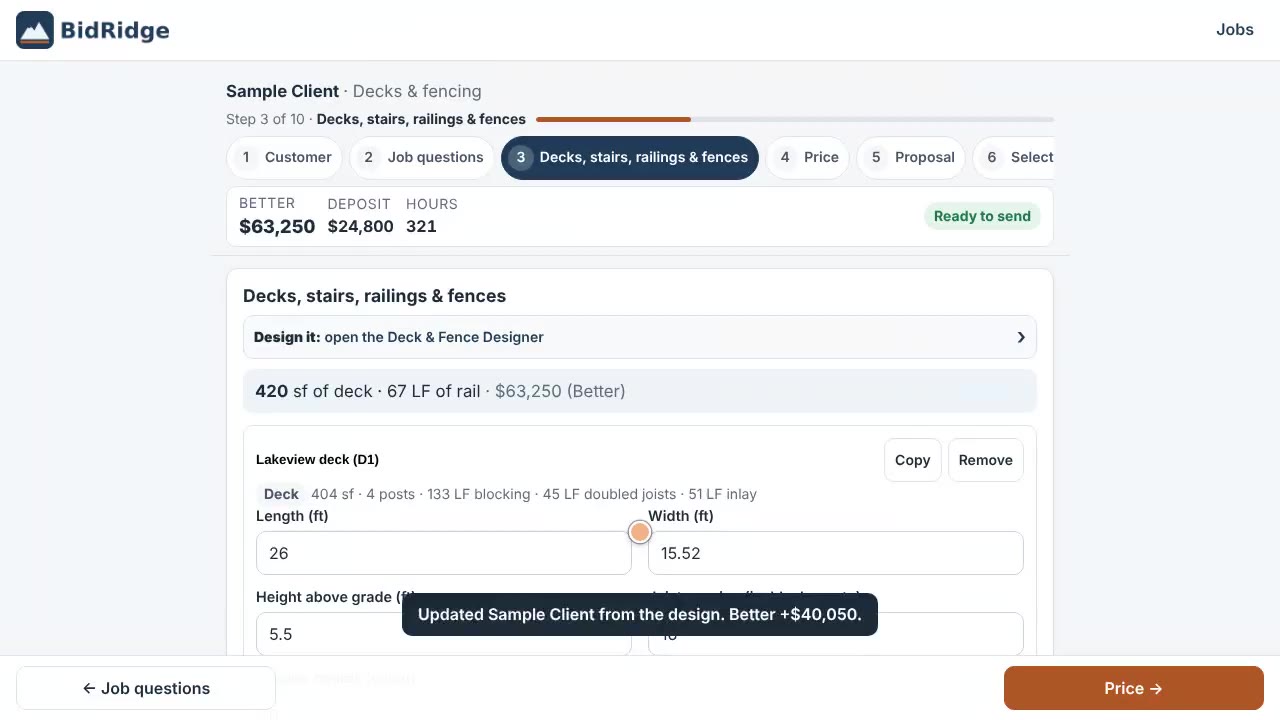
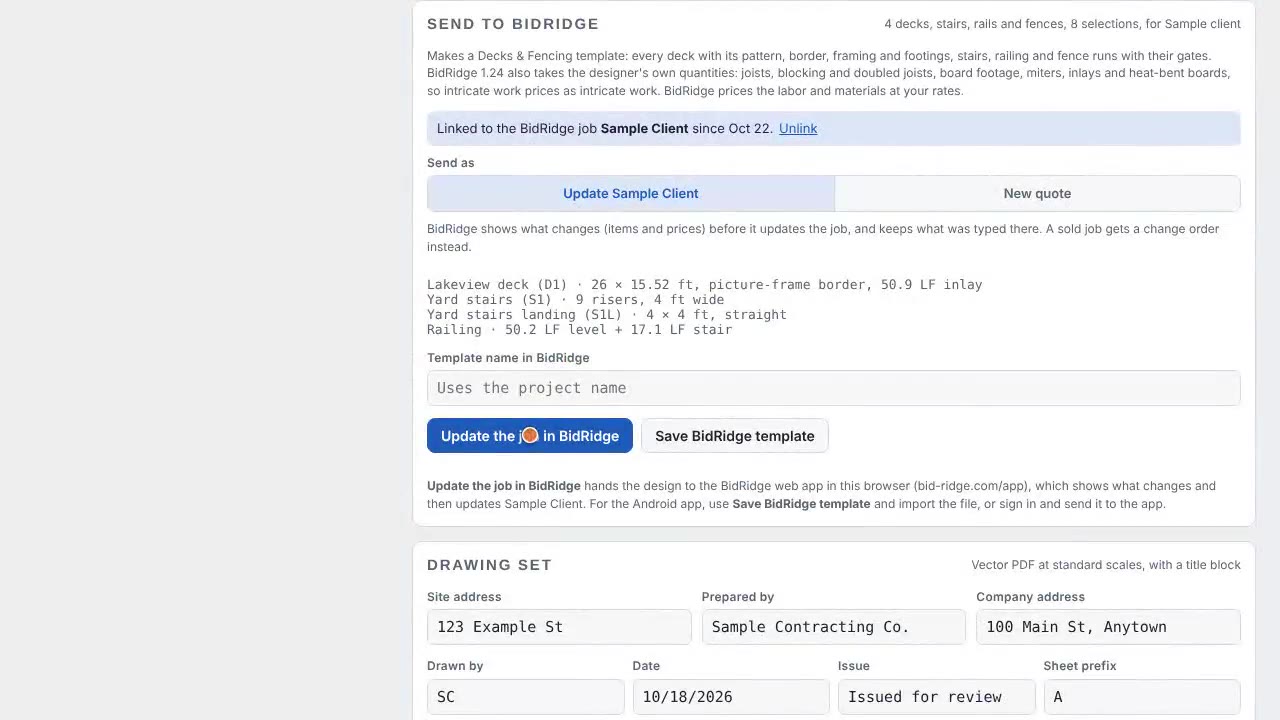
Make the change: here, a picture-frame border. The BidRidge card says the design is linked to the job, with Send as set to Update. Tap Update the job in BidRidge. The drawing set, cut list and buy list go with it.

Field tip: Send as New quote makes a separate quote and leaves the job alone.

Step 4: Review the update in the Deck & Fence Designer
  1. Review the update
  2. Now and after the update
  3. Remove the typed deck: the design replaces it
  4. Update the job

Step 4: Review the update

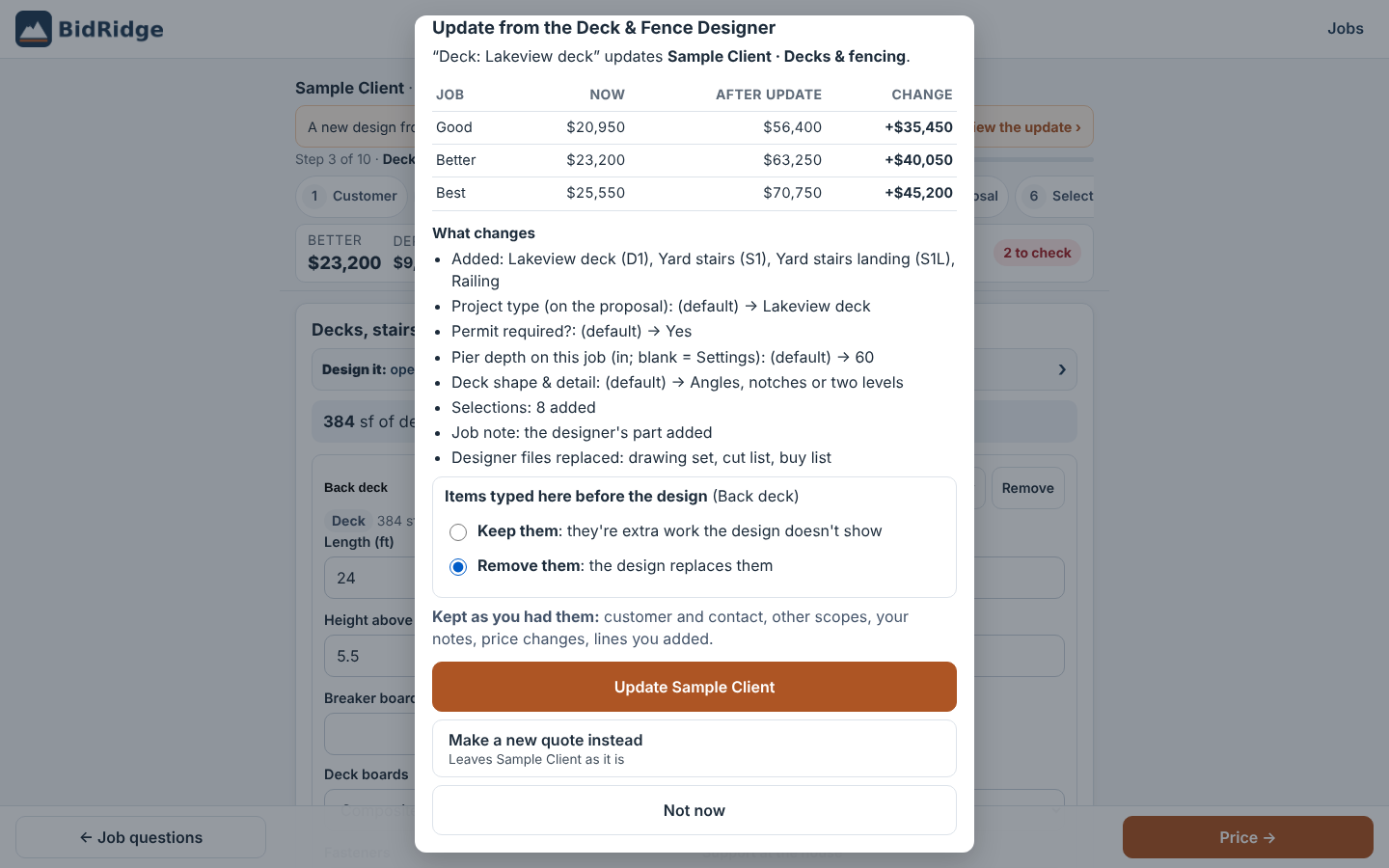
BidRidge opens the job with a banner: Review the update. The dialog shows Good, Better and Best now and after the update, and what changes. Pick whether the typed deck stays or the design replaces it, then tap Update.

Field tip: Your customer info, notes, price changes and lines you added are kept. The dialog lists them.

Step 5: A sold job gets a change order in the Deck & Fence Designer
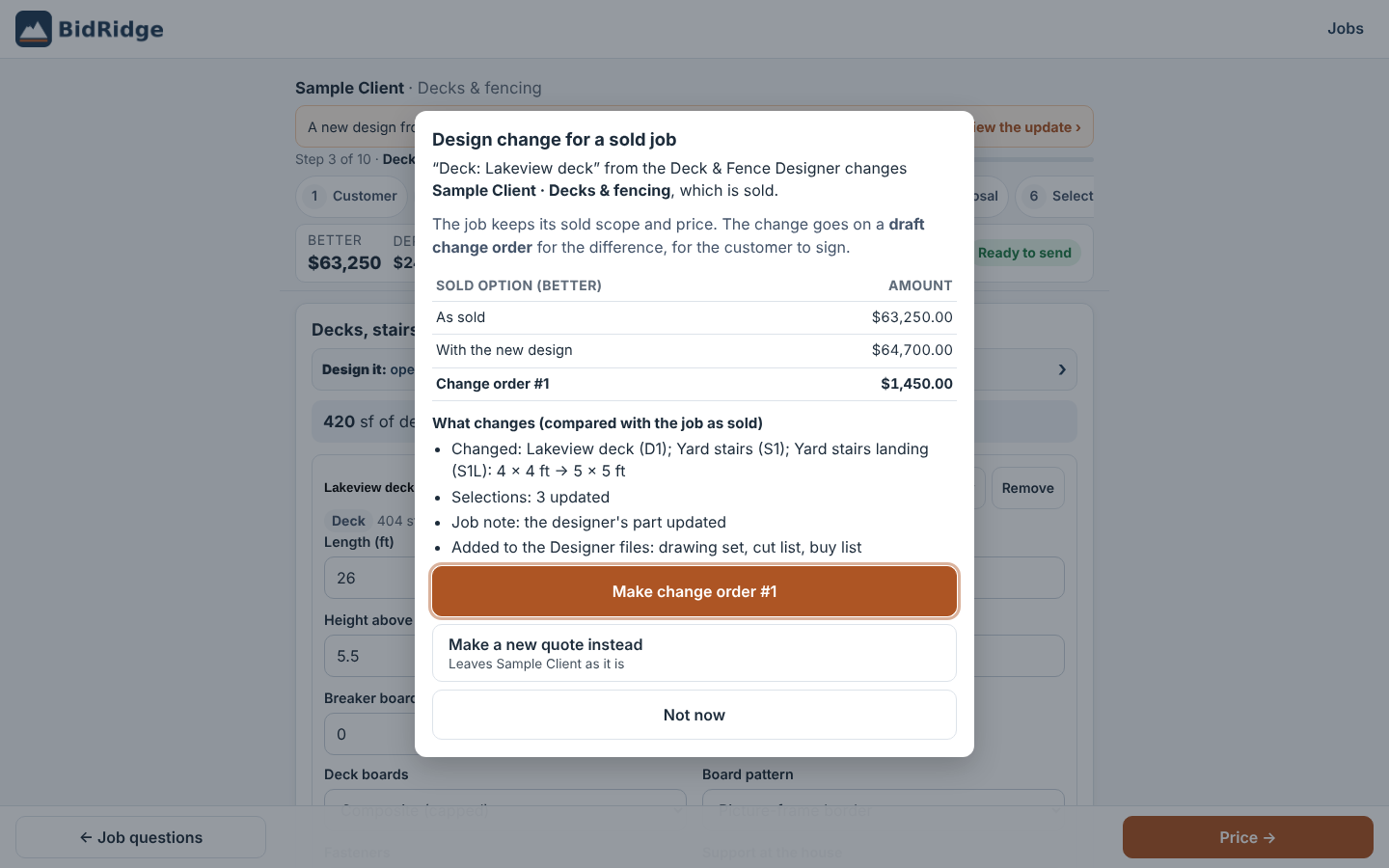
  1. Design change for a sold job
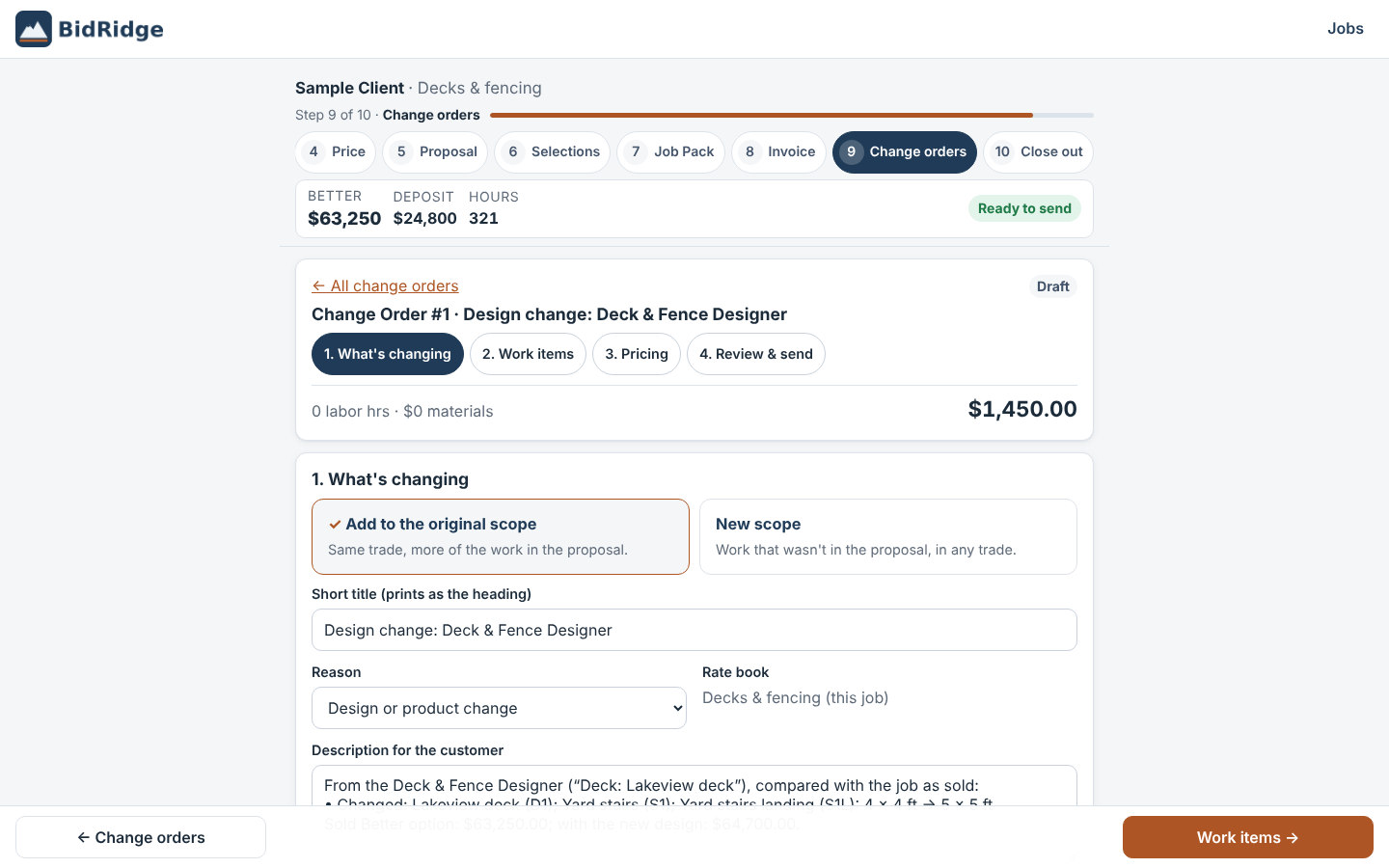
  2. The difference goes on a change order

Step 5: A sold job gets a change order

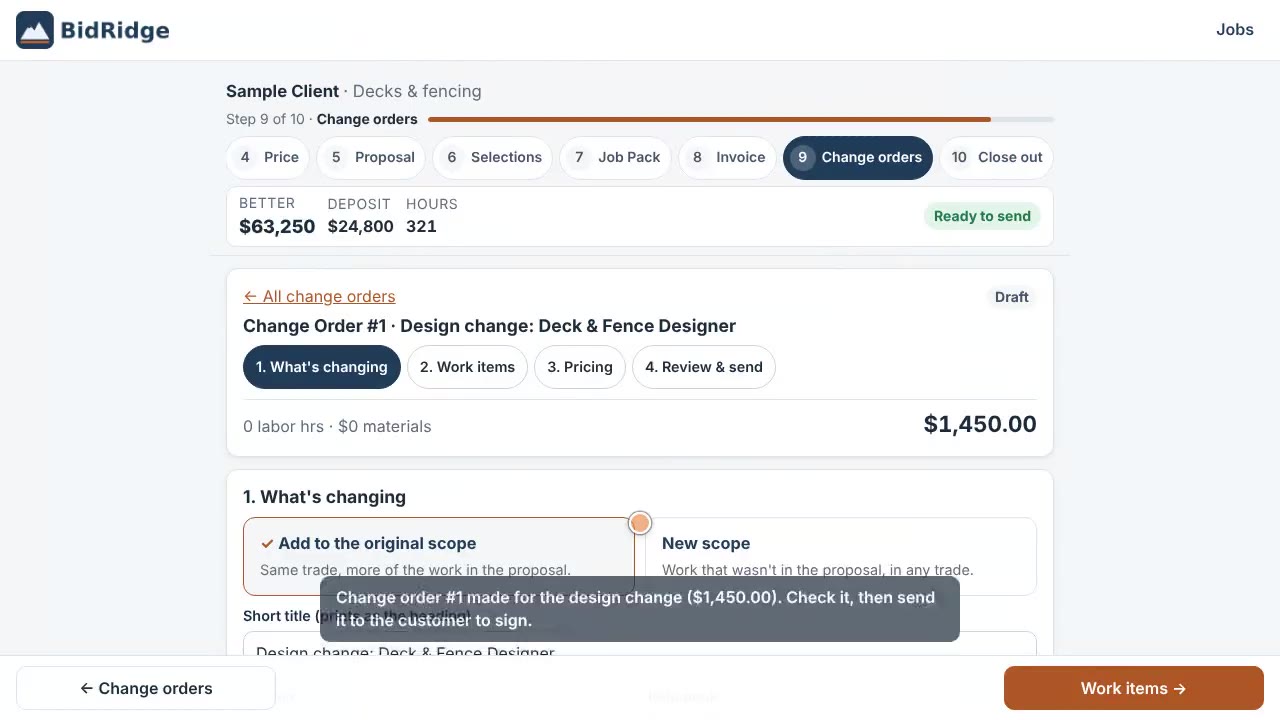
Once the job is marked sold, a design change can't rewrite the sold price. We widen the stair to 5 feet and send it again. BidRidge shows the sold option, the price with the new design, and makes a draft change order for the difference.

Field tip: Check the change order's wording, then send it to the customer to sign.

Step 6: The files in the Job Pack in the Deck & Fence Designer
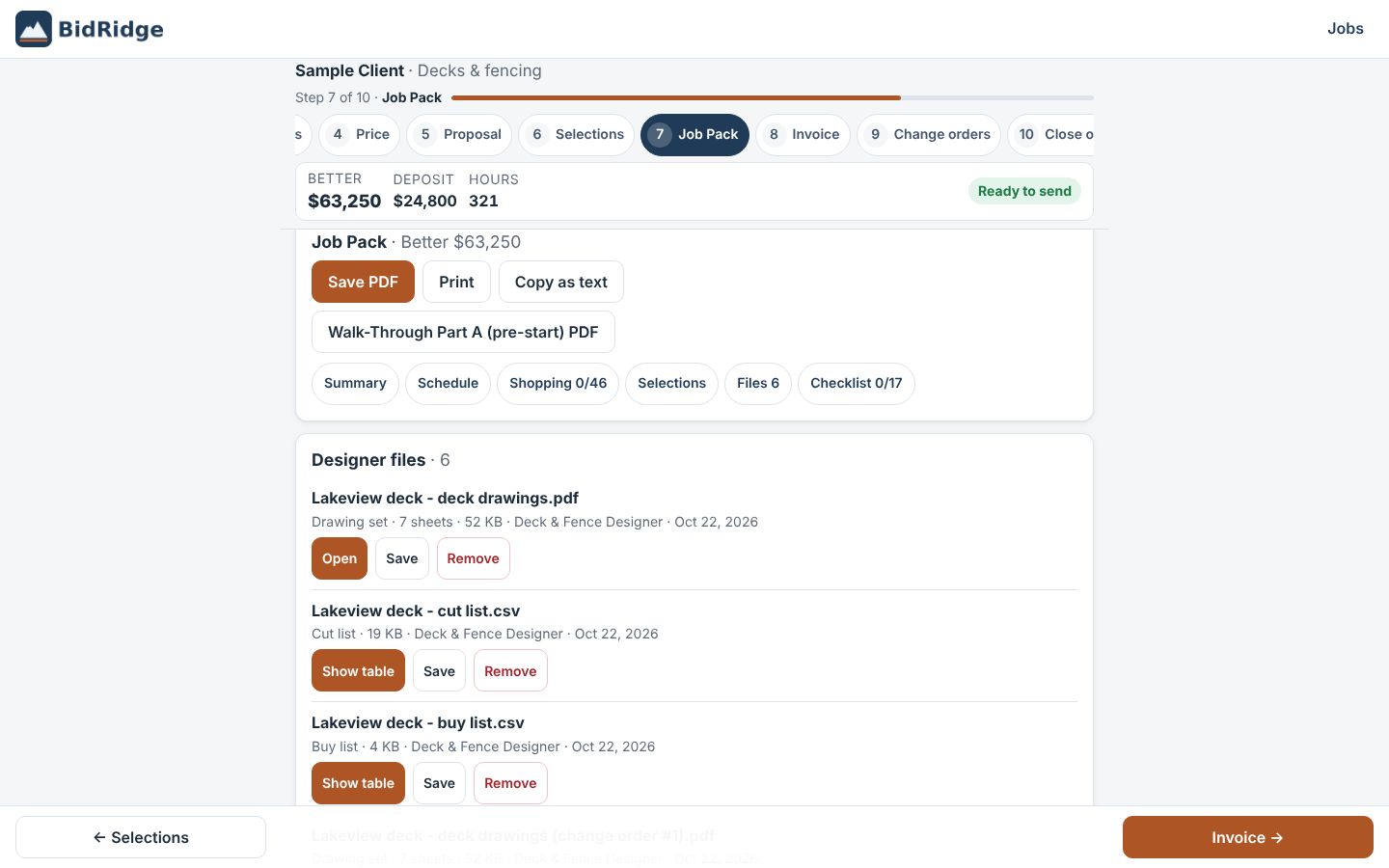
  1. Designer files
  2. The change order's copies

Step 6: The files in the Job Pack

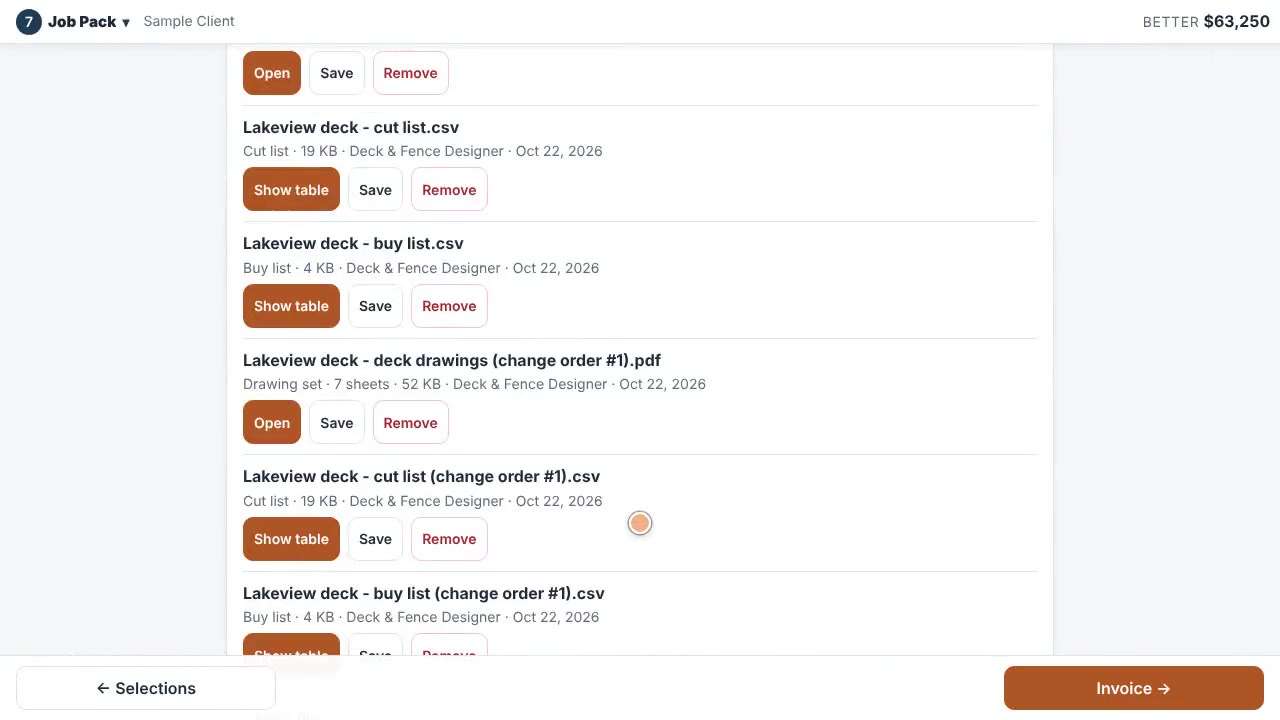
The Job Pack lists the designer files: the drawing set, the cut list and the buy list. The change order's drawings and lists sit next to the sold ones, marked with its number.

Field tip: Open the drawing set from the Job Pack on site. It's the same set the customer approved.

What you get

The drawing set, the lists and the files

Real files from this sample, made by the designer. Tap a page to see it full size. Yours carry your company, the client and the address.

The review dialog: Good, Better and Best now and after the update, what changes, what stays
A sold job: the design change becomes change order #1 for the difference
The draft change order, ready to check and send
The Job Pack: the designer files, and the change order’s copies
The designer opened from the job: use this design for it

The BidRidge quote

Same numbers in the quote

The designer sends its quantities to BidRidge, and BidRidge prices the labor and materials at your rates.

  • Good
    $56,400
  • Better
    $63,250
    Recommended
  • Best
    $70,750
From the designSent to the quote
Typed at the walk-throughBetter $23,200
With the designBetter $63,250
Change order #1$1,450 (stair 4′ to 5′)
Files in the Job Pack6

The Lakeview deck in BidRidge at its starting rates after the update (the typed deck removed). Change order #1 for the 5 ft stair: $1,450.

Try it on your own job

Open the sample, change it to your measurements, and send it to a BidRidge quote. Drawing is free; the drawing set, the lists and the quote come with a BidRidge license or the 14-day trial.

In the designer, tap Open project and pick the sample file. It opens exactly as in the video.

Sample designs: names, sizes and clients are made up. Prices are BidRidge's starting rates; set your own. The designers check against common guidelines (IRC, NKBA and the makers' published numbers) to help you catch mistakes. They don't replace your building department or the manufacturer's installation instructions: verify with them.